
Multi Folder Watchtower
Real‑time multi‑folder monitoring, email alerts, advanced statistics, and customizable profiles. Use it as a desktop application or install it as a Windows service for 24/7 monitoring, even when no one is logged in.
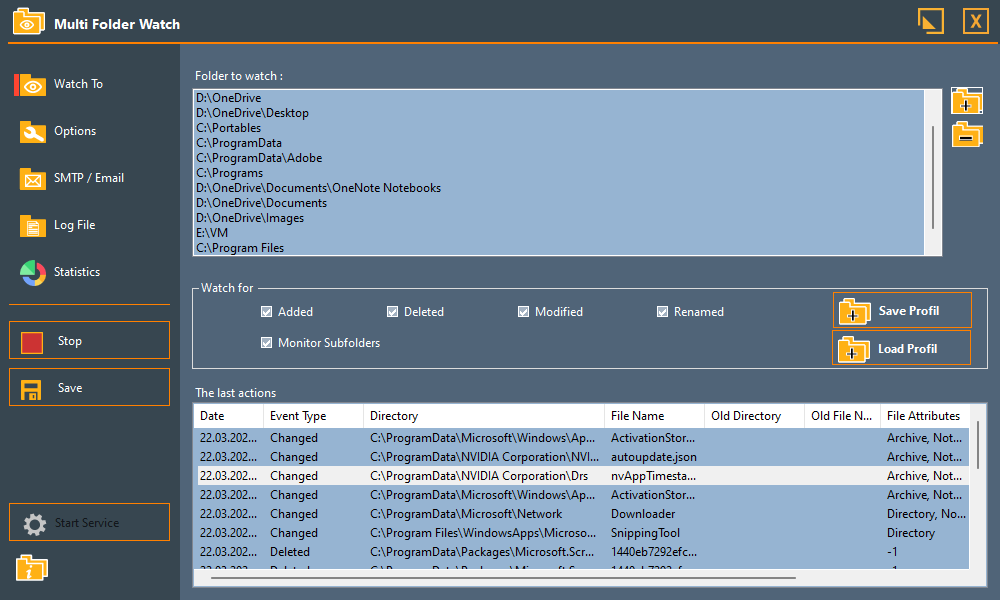
Features
Multi‑folder
Clean UI
Silent watch, instant action
No more manual folder checking. Folder Watchtower instantly detects creations, modifications, deletions, and renames.
Powerful filters
Scheduled emails
Stay informed, anywhere
Multilingual
Advanced stats
Monitoring profiles
From simple to powerful
Profiles & statistics
FAQ
What exactly can Folder Watchtower monitor?
Folder Watchtower monitors all files and folders within the directories you add. It detects the following events: creation, deletion, modification, and renaming. You can enable or disable each event type independently. Monitoring can include subfolders or be limited to the root directory.
Can I monitor folders on a network drive or NAS share?
Yes, as long as the network share is accessible with appropriate read permissions. For mapped drives or UNC paths (\\server\share), Folder Watchtower will detect the remote source and can display the remote computer name in the logs.
How do I set up email alerts? Are passwords secure?
In the SMTP tab, enter your server settings (host, port, username).
The password is stored securely in Windows Credential Manager, never in plain text in configuration files.
You can also customize the message and choose to send an email per action or a periodic summary.
How do the include/exclude extension filters work?
You can specify a semicolon‑separated list of extensions, e.g. *.tmp;*.log;*.bak.
-
Exclude : files with matching extensions will not be monitored.
-
Include : only files with matching extensions will be monitored.
The two options are mutually exclusive (you cannot enable both at the same time).
What is a “monitoring profile” and how do I use it?
A profile is a complete backup of your configuration: monitored folders, event types, extension/attribute filters, SMTP settings, etc.
You can quickly switch between different contexts (e.g., “Client project A”, “Backup server”, “Personal monitoring”). Profiles are available via the File menu or the dedicated icon.
Can I run Folder Watchtower in the background without a user interface?
Yes, you can install Folder Watchtower as a Windows service. Once installed, it starts automatically with the system and monitors folders even when no user is logged in. You can start/stop the service from the GUI or via services.msc.
Where are log files stored and how can I view them?
Logs are stored in %LocalAppData%\FolderWatchtower\monitoringLog.txt. They contain each event with date, type, path, source user and computer.
The application automatically rotates the file when it exceeds 5 MB. You can view logs directly in the “Logs” tab or open the file with a text editor.
Are the advanced statistics updated in real time?
Charts and indicators in the “Statistics” tab update dynamically as events occur. You can view event type distribution, hourly activity, and the top 10 most modified files.
Is the application free? Are there any limitations?
Folder Watchtower is 100 % free for personal or professional use. No features are locked.
If you wish to support development, a voluntary donation is possible (via the download page or the “About” menu).
No ads, no data collection.
How do I report a bug or request a feature?
You can use the “Report a bug” link on the website, or send an email to the address shown in the “Contact” menu. If possible, include the debug.log file (located in %LocalAppData%\FolderWatchtower\) to help with diagnosis.
Can I translate the interface into another language?
Currently supported languages are French, English, German, Italian, Spanish and Turkish.
The application automatically detects your system language, or you can change it manually in the “Options” tab.
If you wish to contribute an additional translation, please contact us.
What are the system requirements?
-
Windows 10 or Windows 11 (x64)
-
.NET 8.0 Desktop Runtime (automatically installed by the MSI if missing)
-
Approximately 50 MB of disk space